> For the complete documentation index, see [llms.txt](https://isikdev.gitbook.io/easylockpick-docs/llms.txt). Markdown versions of documentation pages are available by appending `.md` to page URLs; this page is available as [Markdown](https://isikdev.gitbook.io/easylockpick-docs/how-to-use/setup-the-basics.md).

# Setup the Basics

## Setting Up the Basics

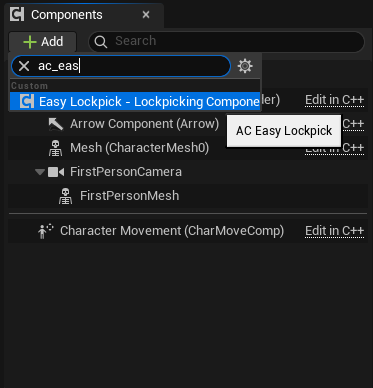
To start using immediately, head into your **Character** blueprint class and add the **AC\_EasyLockpick (EasyLockpick - Lockpicking Component)** component:

<figure><img src="https://4053584706-files.gitbook.io/~/files/v0/b/gitbook-x-prod.appspot.com/o/spaces%2FFvaB344U1gVqNNC4oFjs%2Fuploads%2FrMqUSavFMJ5SYQkLY0bu%2Fimage.png?alt=media&amp;token=02f76e41-2ce6-4ead-a9af-c4c4de2da8b0" alt=""><figcaption></figcaption></figure>

In **AC\_EasyLockpick's** details tab inside your **Character,** you will find a **AttachTargetTag** property. Change this to what you want or keep it at default. Copy it:

<figure><img src="https://4053584706-files.gitbook.io/~/files/v0/b/gitbook-x-prod.appspot.com/o/spaces%2FFvaB344U1gVqNNC4oFjs%2Fuploads%2FDHiKeqemVSC1mvs7rH4T%2Fimage.png?alt=media&amp;token=eb1a79c9-ae37-47c0-a08b-973c96ecf7d1" alt=""><figcaption></figcaption></figure>

Now, we will tag the **Scene Component we** want the Lock asset to attach to. In this example, we'll make it attach to the **Camera Component:**

<figure><img src="https://4053584706-files.gitbook.io/~/files/v0/b/gitbook-x-prod.appspot.com/o/spaces%2FFvaB344U1gVqNNC4oFjs%2Fuploads%2FnM3SuKqGzmNgWYSEKazv%2Fimage.png?alt=media&amp;token=d79a505d-ffd2-4212-8630-0795ae4cb90e" alt=""><figcaption></figcaption></figure>

After compiling, you should see the **Lock Preview Mesh** spawn in front of the **Camera Component**. This is just a preview mesh to help you adjust the transform of the Lock asset:

<figure><img src="https://4053584706-files.gitbook.io/~/files/v0/b/gitbook-x-prod.appspot.com/o/spaces%2FFvaB344U1gVqNNC4oFjs%2Fuploads%2FYTGc9E7Vg1YlVtss7Wke%2Fimage.png?alt=media&amp;token=f911ce30-33c4-413c-b454-5d58e5b1cbbe" alt=""><figcaption></figcaption></figure>

You can tweak the settings of the Component as you like:

<figure><img src="https://4053584706-files.gitbook.io/~/files/v0/b/gitbook-x-prod.appspot.com/o/spaces%2FFvaB344U1gVqNNC4oFjs%2Fuploads%2FSQBOzkg4EqXQ8lKCbt5h%2Fimage.png?alt=media&amp;token=cea2ef56-2e1d-4ac6-be7a-d4d51002a912" alt=""><figcaption></figcaption></figure>

In your level, locate or add a **Post Process Volume.** Ensure its set to **Infinite Extent (Unbound).** Go to its **Post Process Materials** and add the Plugin provided **M\_PP\_DepthFade** material:

<figure><img src="https://4053584706-files.gitbook.io/~/files/v0/b/gitbook-x-prod.appspot.com/o/spaces%2FFvaB344U1gVqNNC4oFjs%2Fuploads%2FmaYlwT82hctl9op6FF6f%2Fimage.png?alt=media&amp;token=f6d4a2ed-f056-4e60-98f9-f2e0aa978bed" alt=""><figcaption></figcaption></figure>

{% hint style="warning" %}
If you cannot locate this material, ensure that **Show Plugin Content** is enabled in the **Asset Referencer/Browser.**
{% endhint %}

To test, in your Character (or any other blueprint) edit your interaction logic and/or implement logic to Interact with the plugin's **Base Lockpickable** class:

<figure><img src="https://4053584706-files.gitbook.io/~/files/v0/b/gitbook-x-prod.appspot.com/o/spaces%2FFvaB344U1gVqNNC4oFjs%2Fuploads%2FMjOGPx9ZvXOjTnuY6e0D%2Fimage.png?alt=media&amp;token=0e2f480a-041f-487b-af45-e302bac79584" alt=""><figcaption></figcaption></figure>

Add a **Lockpickable actor** from **Plugin Content** to your level and configure its instance settings as you desire:

<figure><img src="https://4053584706-files.gitbook.io/~/files/v0/b/gitbook-x-prod.appspot.com/o/spaces%2FFvaB344U1gVqNNC4oFjs%2Fuploads%2FtFxE6cbbDCsrIz1pAUg6%2Fimage.png?alt=media&amp;token=45c56b21-a8f4-46ed-8387-be2fe13ef06d" alt=""><figcaption></figcaption></figure>

That's it! Now when you interact with the example lockpickable asset, you should see that:

* The background gets dimmed using the Post Process material upon interaction.
* The lock asset is shown if interacting with a locked door.
* Upon successful lockpicking, the lockpicakble asset is unlocked.
<figure><img src="https://4053584706-files.gitbook.io/~/files/v0/b/gitbook-x-prod.appspot.com/o/spaces%2FFvaB344U1gVqNNC4oFjs%2Fuploads%2FqQQoad7Zox9zK0Bzuwm6%2FAdobe%20Express%20-%202025-08-29%2017-49-32.gif?alt=media&amp;token=32ed2ccc-7110-40db-ad93-00d2d3abe888" alt=""><figcaption></figcaption></figure>
